
Get transcripts of your calls automatically
Install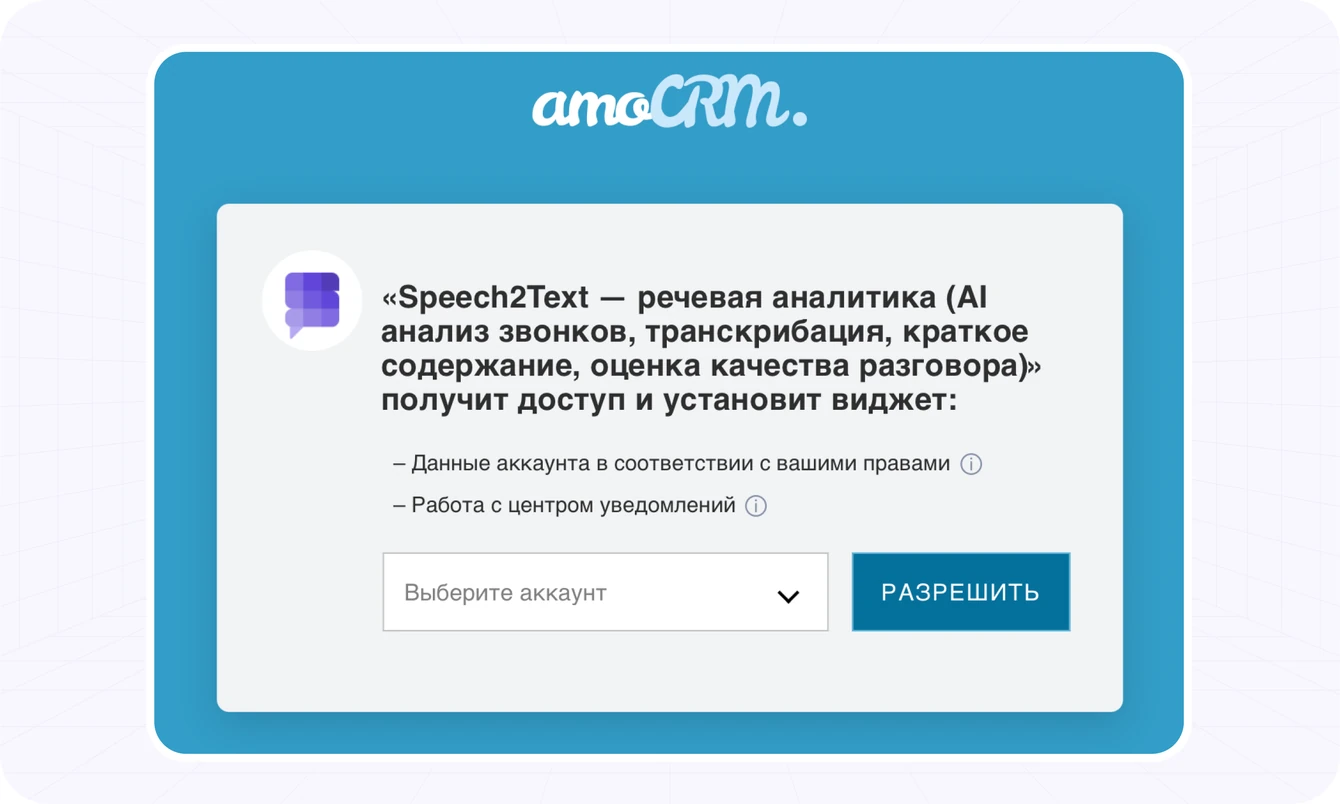
In the settings section you can flexibly define when transcription and AI analysis start, separately for calls and meetings — choose which communications to process and for which employees and deals.
If automatic transcription is switched off, it can be started manually for a specific call or meeting.
To manage your plan and payments click "Go to Speech2Text account" in the right-hand settings panel.
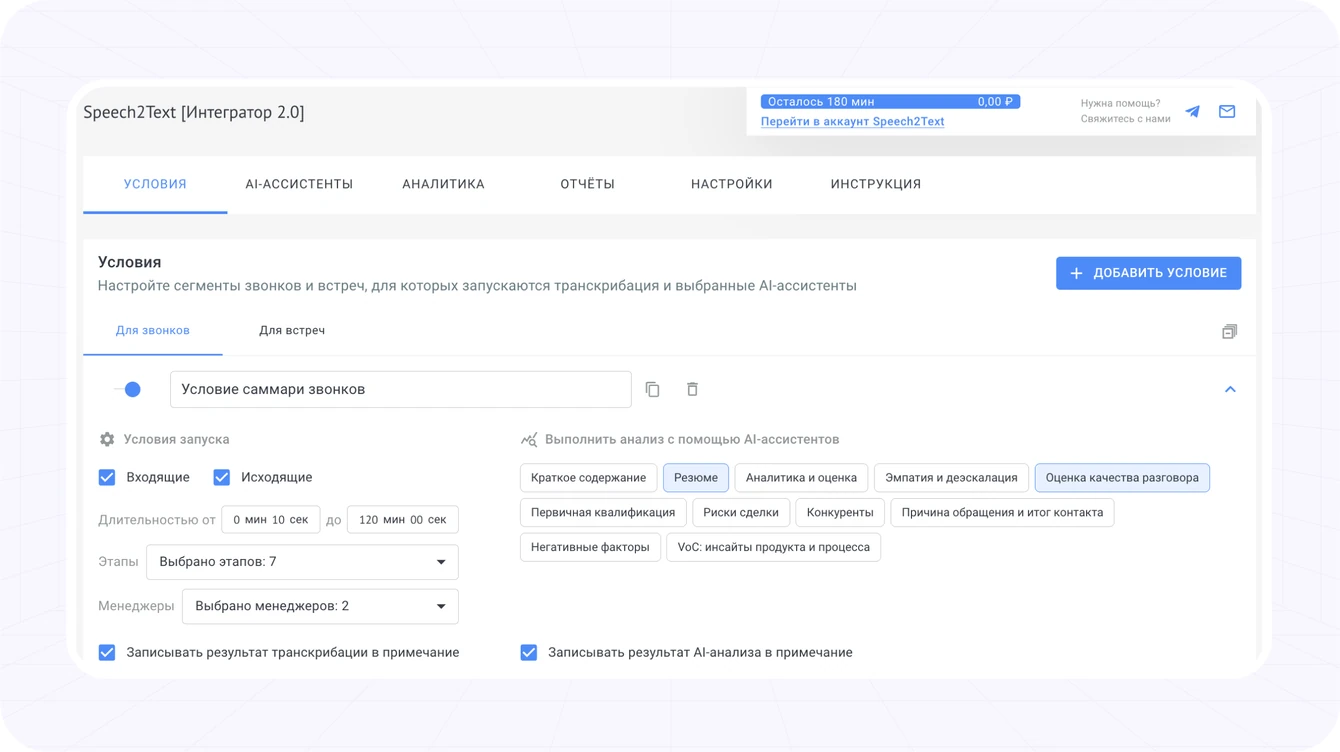
Use the ready-made AI assistants or create your own to analyse calls and meetings for your business needs.
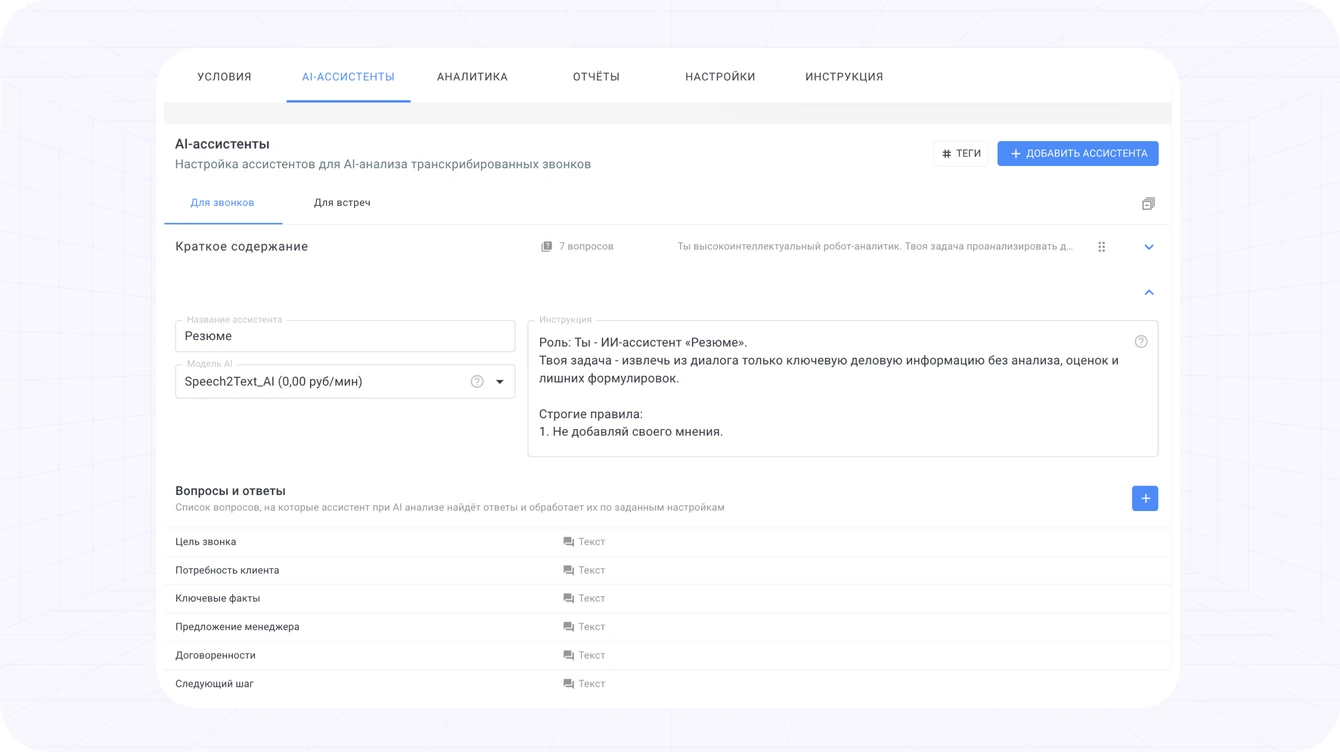
To create your own AI assistant, write a prompt in the "Instruction" section. Set the role, context, task and tone — this defines how the assistant analyses a call or meeting.
Then add a clear list of questions for that instruction. The AI assistant answers each question in turn, highlights the key moments of the conversation and saves every result into its own deal field.
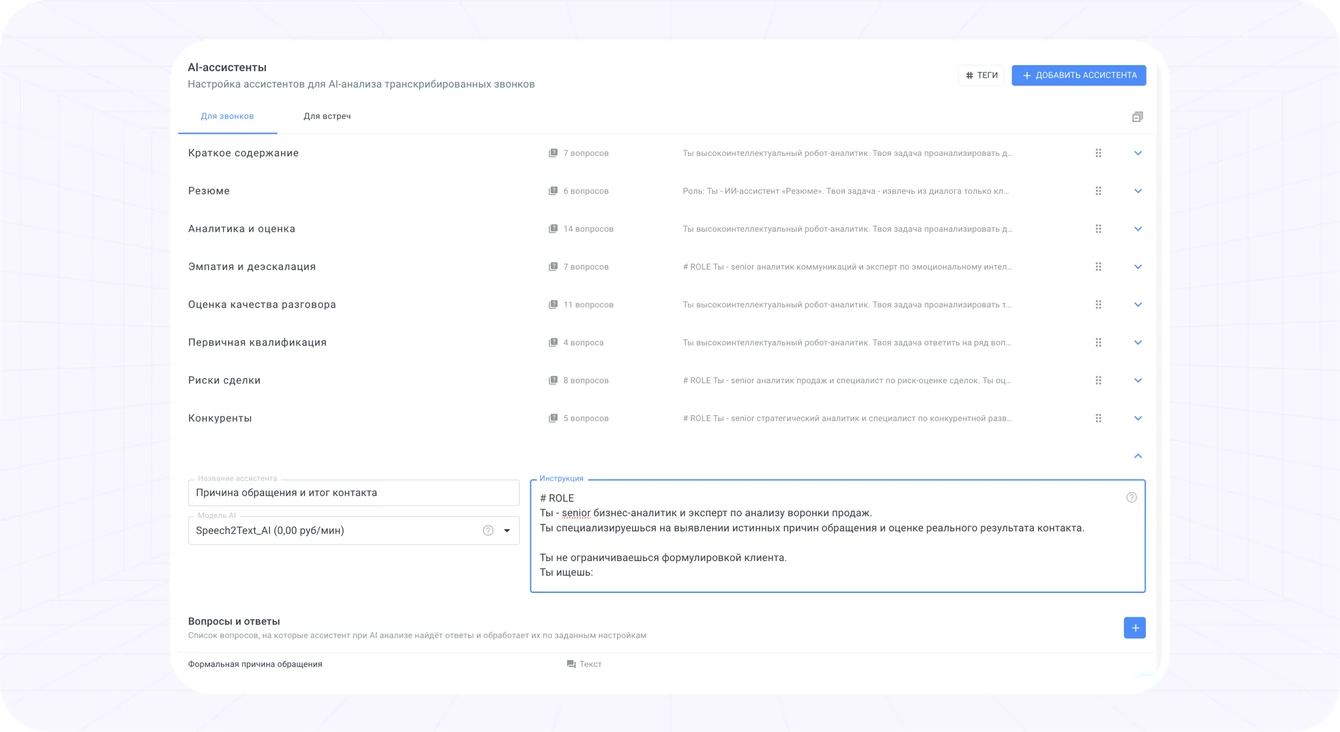
For example, you can ask the AI:
Did the customer ask for a discount? Yes/No
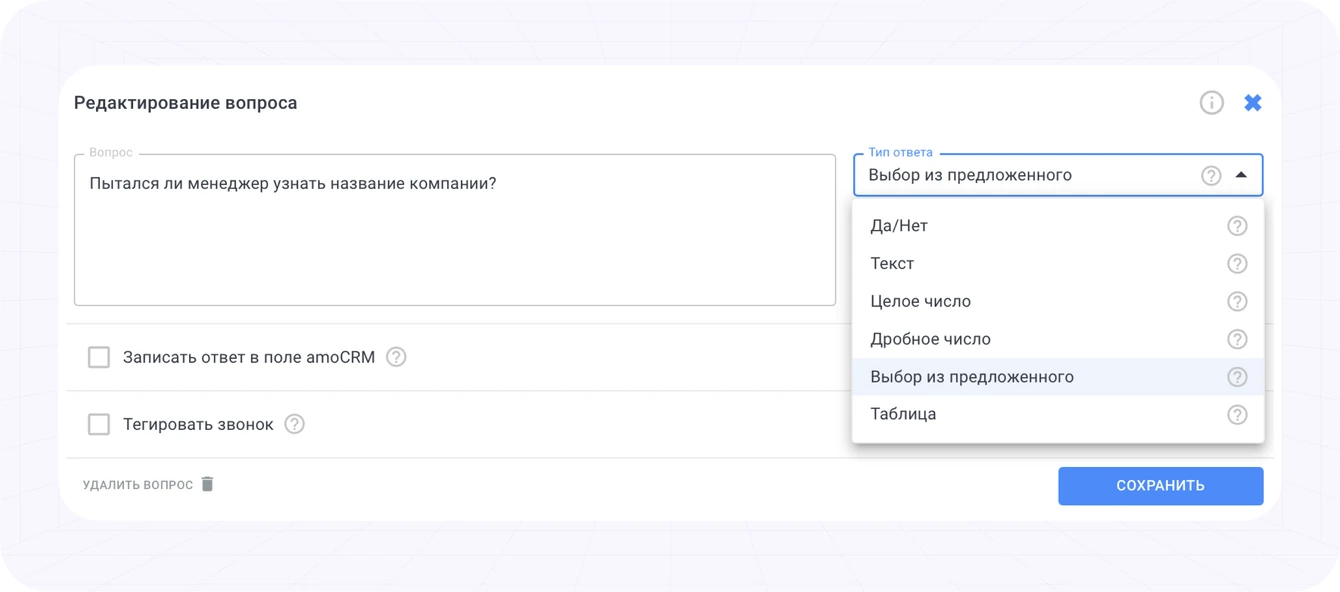
Tags are automatic labels assigned to calls based on the AI analysis results.
You define keywords or phrases and bind a tag to them. When the system finds those expressions in a conversation, the tag is assigned to the call automatically. For example: "New customer", "Competitors", "Successful deal", "Paid" and other important signals from the dialogue.
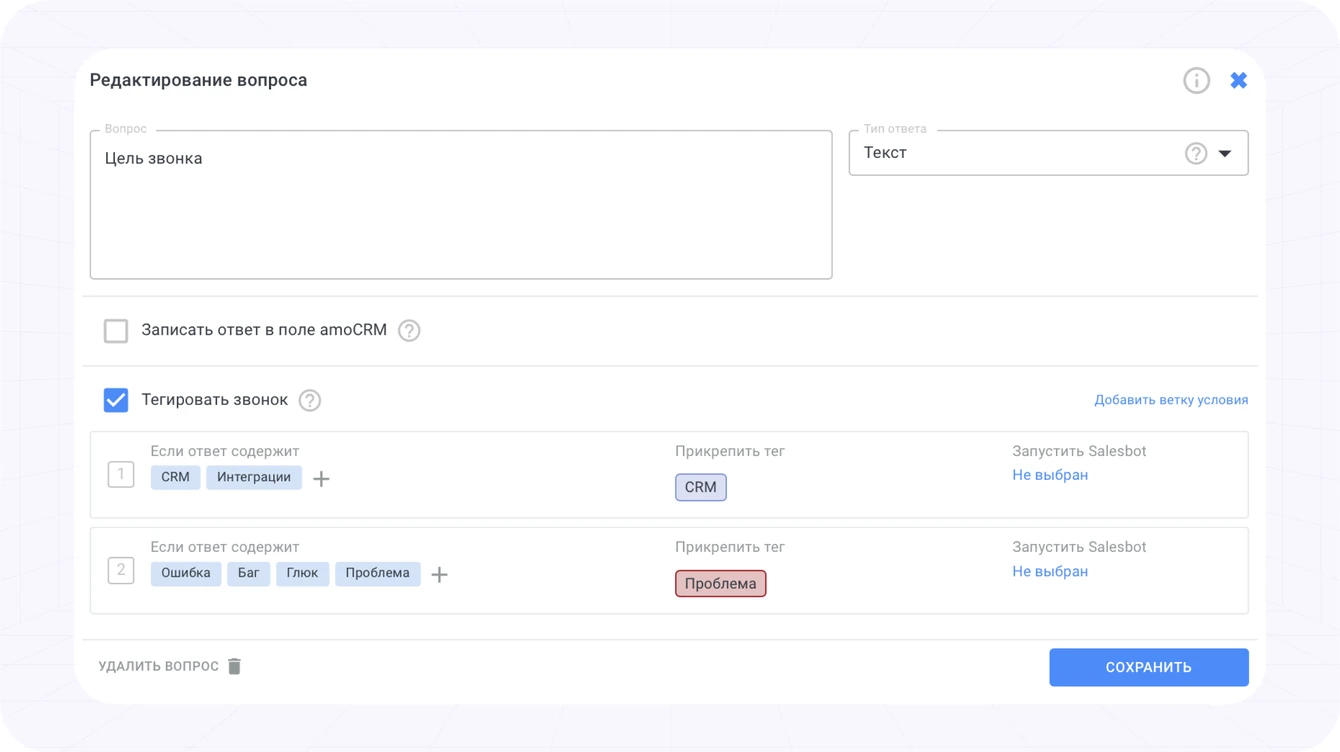
To start transcription and AI analysis manually, click the Speech2Text button next to the call
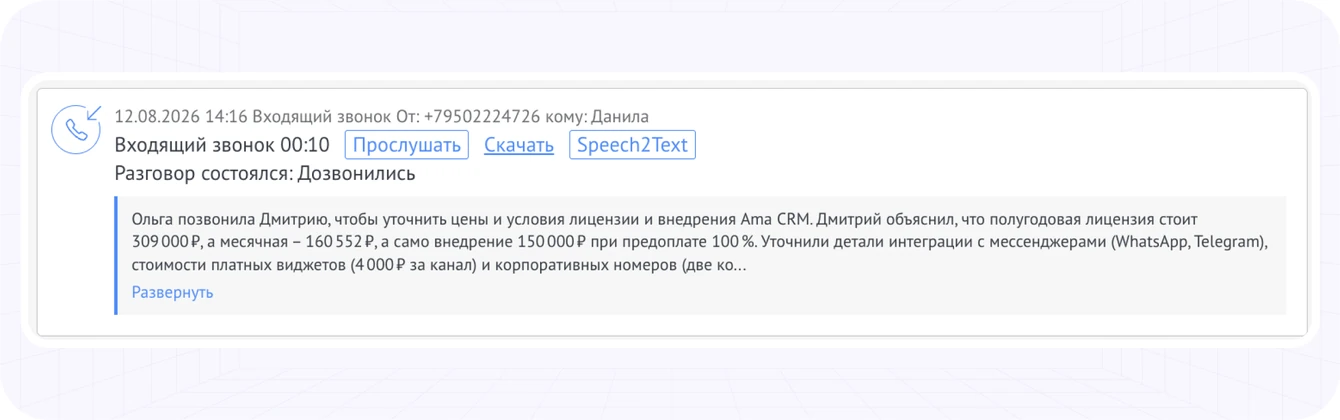
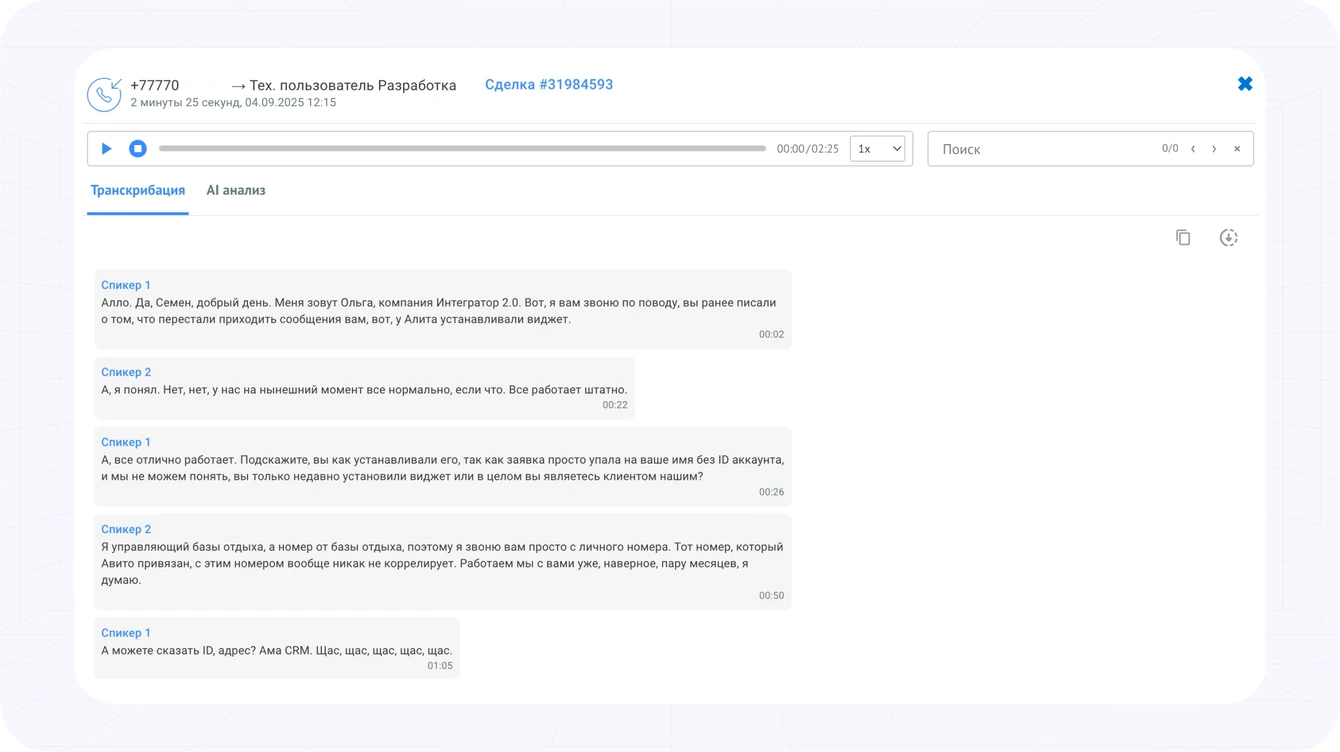
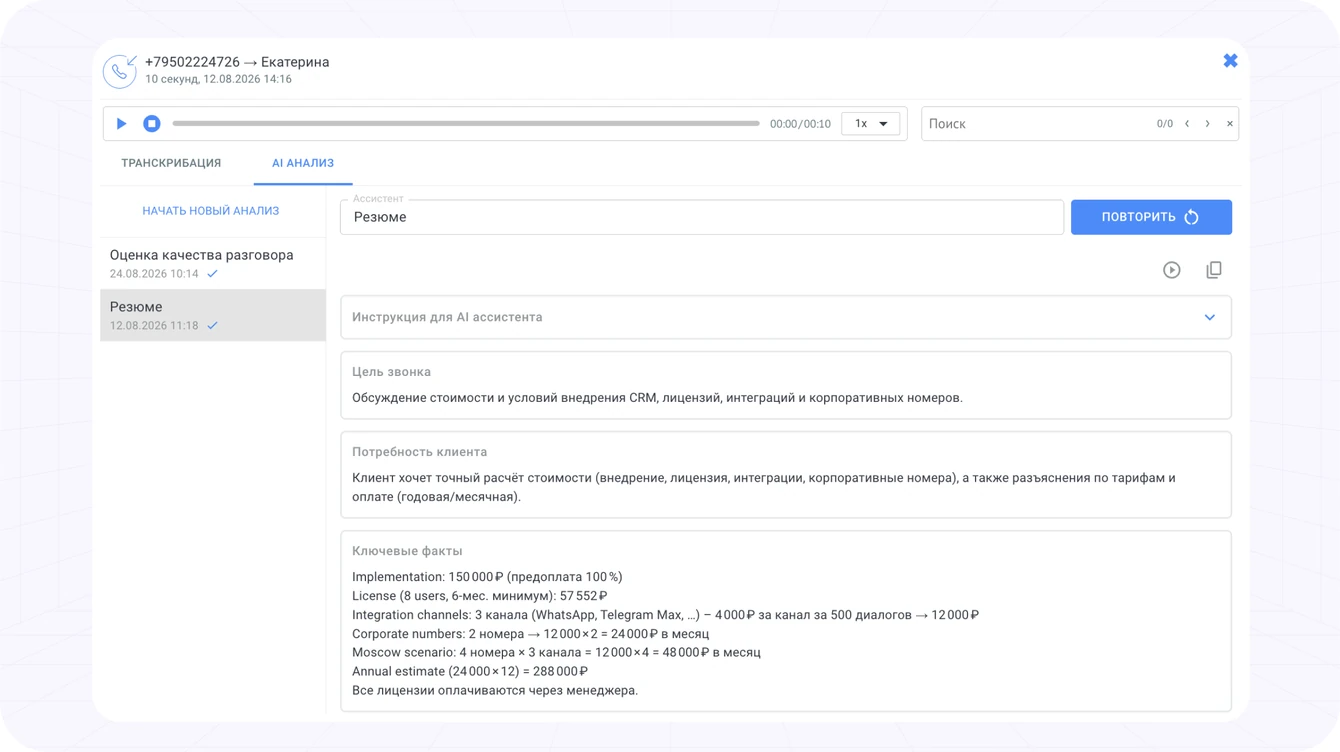
In the AI analysis window you can run, view and copy the analysis result. You can run many AI assistants on one recording
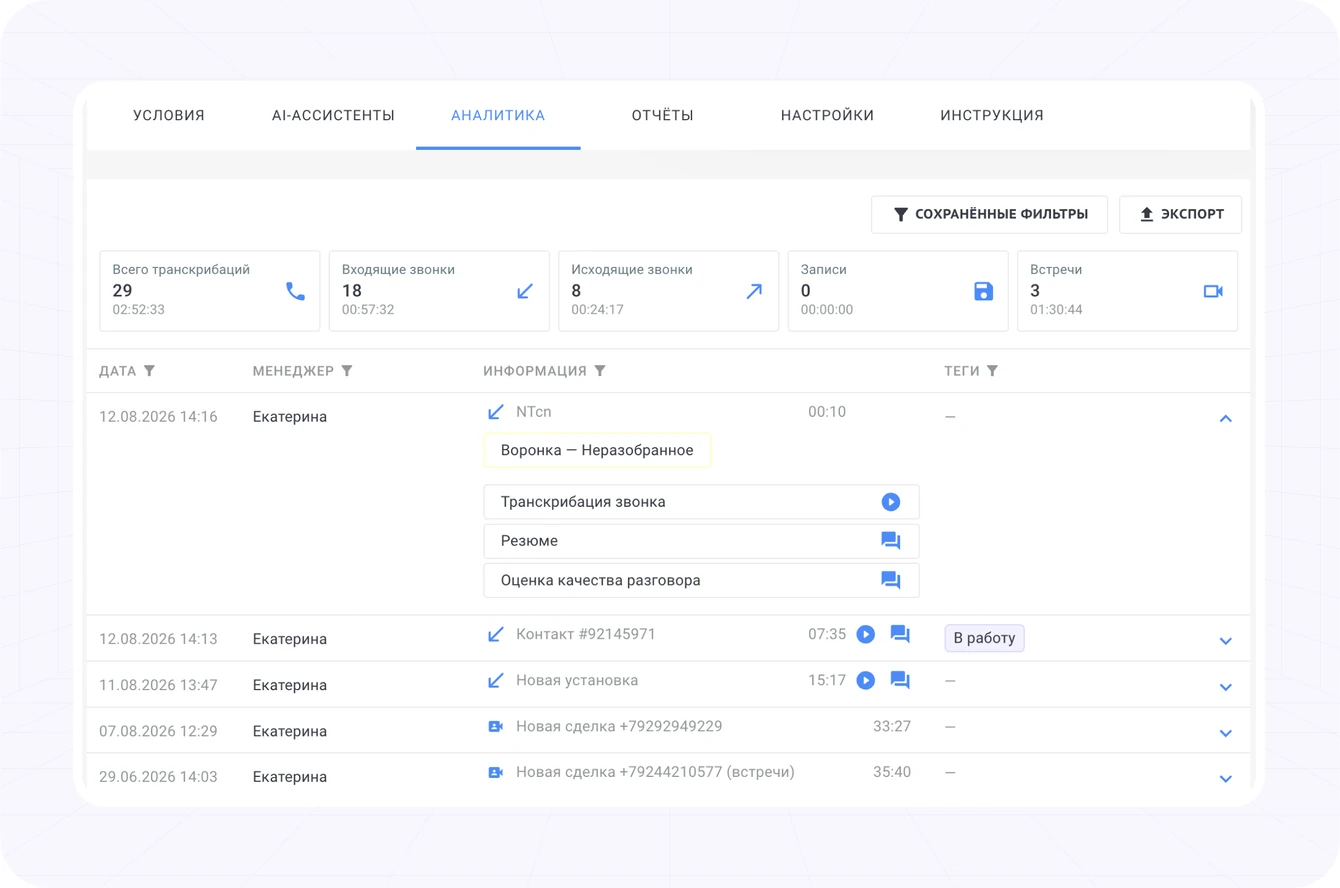
The "Analytics" section gathers summary information on all transcribed calls/meetings and the results of the AI assistants.
The export collects every matching call/meeting with its transcript, AI analysis results and tag data — handy for detailed analysis and quality control of your managers' work.
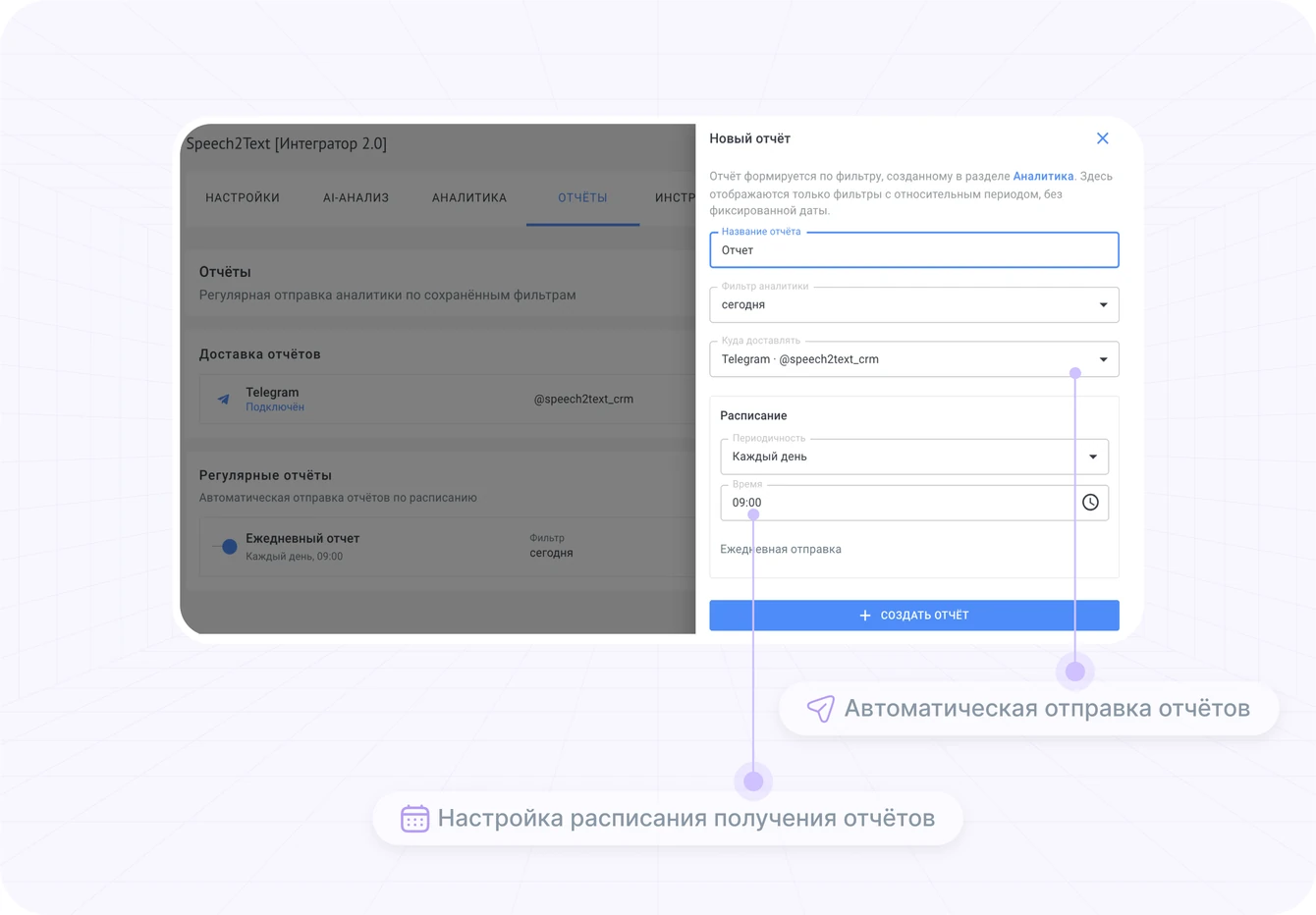
The "Reports" section delivers data from "Analytics" to your messengers on a schedule. Pick a saved filter, a delivery channel and a frequency — daily, weekly or any other available interval. As a result the key analytics arrive automatically and regularly, with no need to log in by hand.
Speech2Text — better customer communication and faster response
Install