Speech2Text Extension for Chrome — a quick way to record and transcribe meetings right in your browser
Record audio and video right in your browser and get accurate transcriptions with automatic punctuation and speaker diarization. Uses the same speech recognition technology as the Speech2Text website. Support for transcription in 90+ languages with speaker diarization right in Google Chrome browser
Advantages of Speech2Text Extension

One-click recording
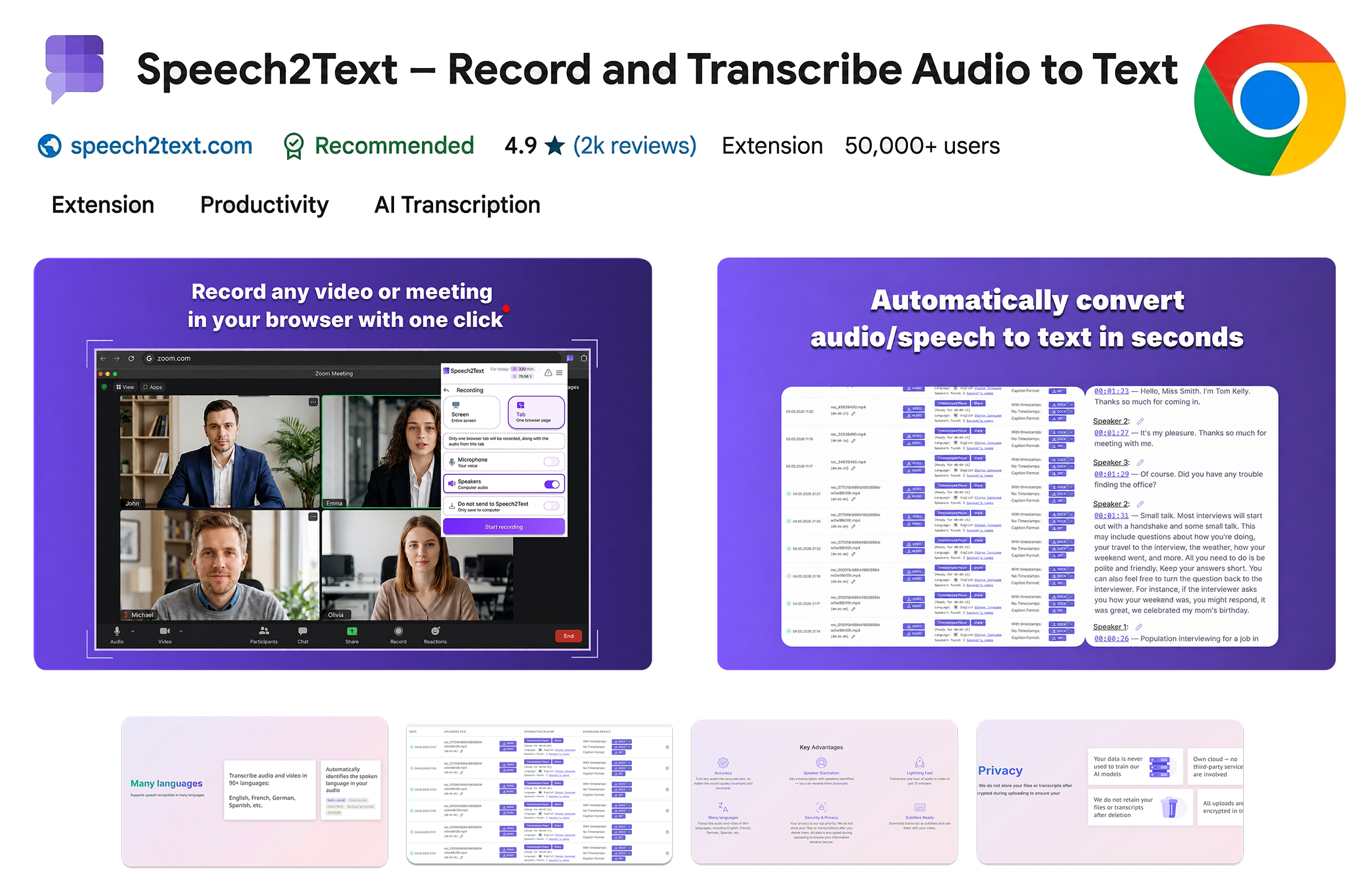
Record and transcribe any video, online meetings, lectures right in your browser with one click — no extra apps needed, never missing key details

Save time
No need to download and upload video/audio to the website — the finished transcription will appear in the Recognitions tab in your Speech2Text account automatically

Export results
The finished video is automatically saved to your computer. Files with ready transcriptions can be downloaded from the website in any convenient format

Custom parameters
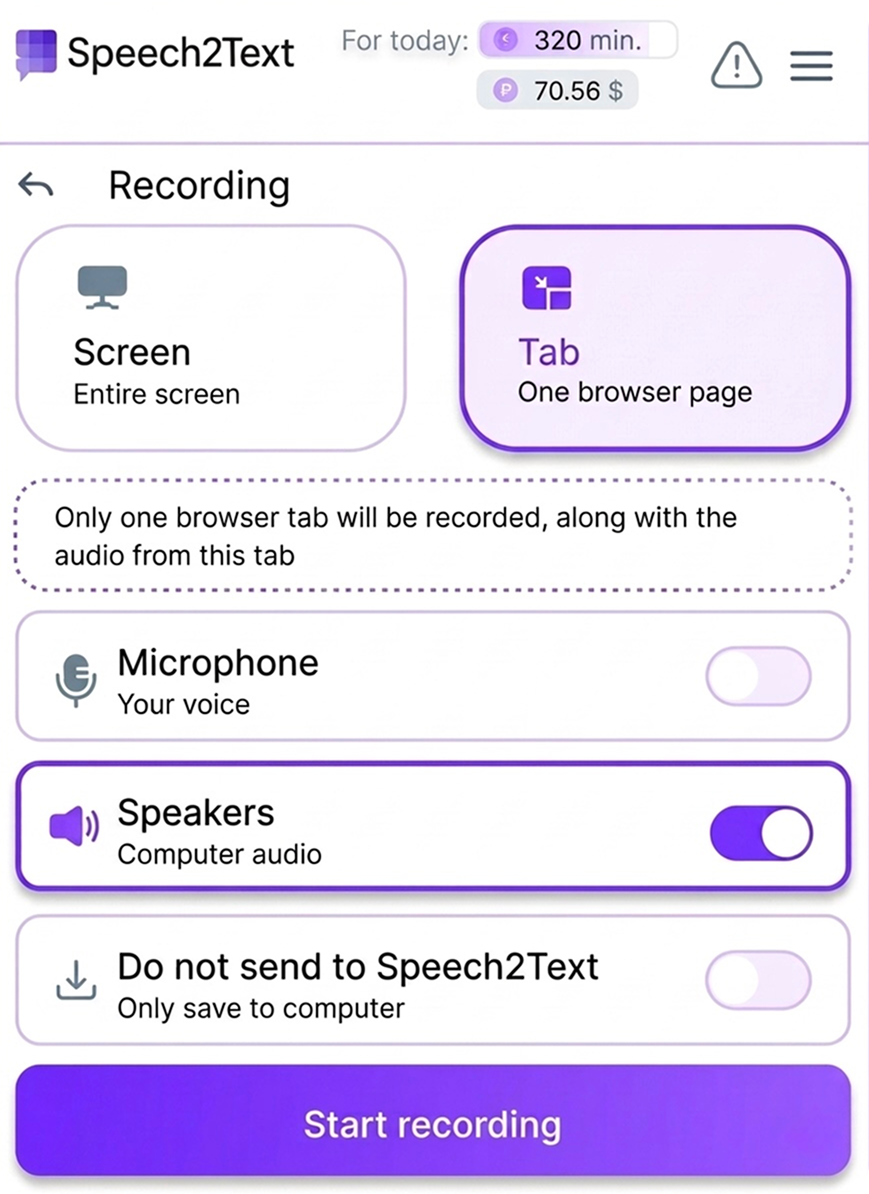
Customize recording parameters according to your tasks. Choose tab or screen recording, microphone and/or system audio
How to use the extension
Install the extension in Chrome
Open the Speech2Text extension page in the Chrome Web Store. Click "Install" / "Add to Chrome" and confirm the installation. After installation, pin the extension icon to the toolbar for quick access
Choose recording parameters
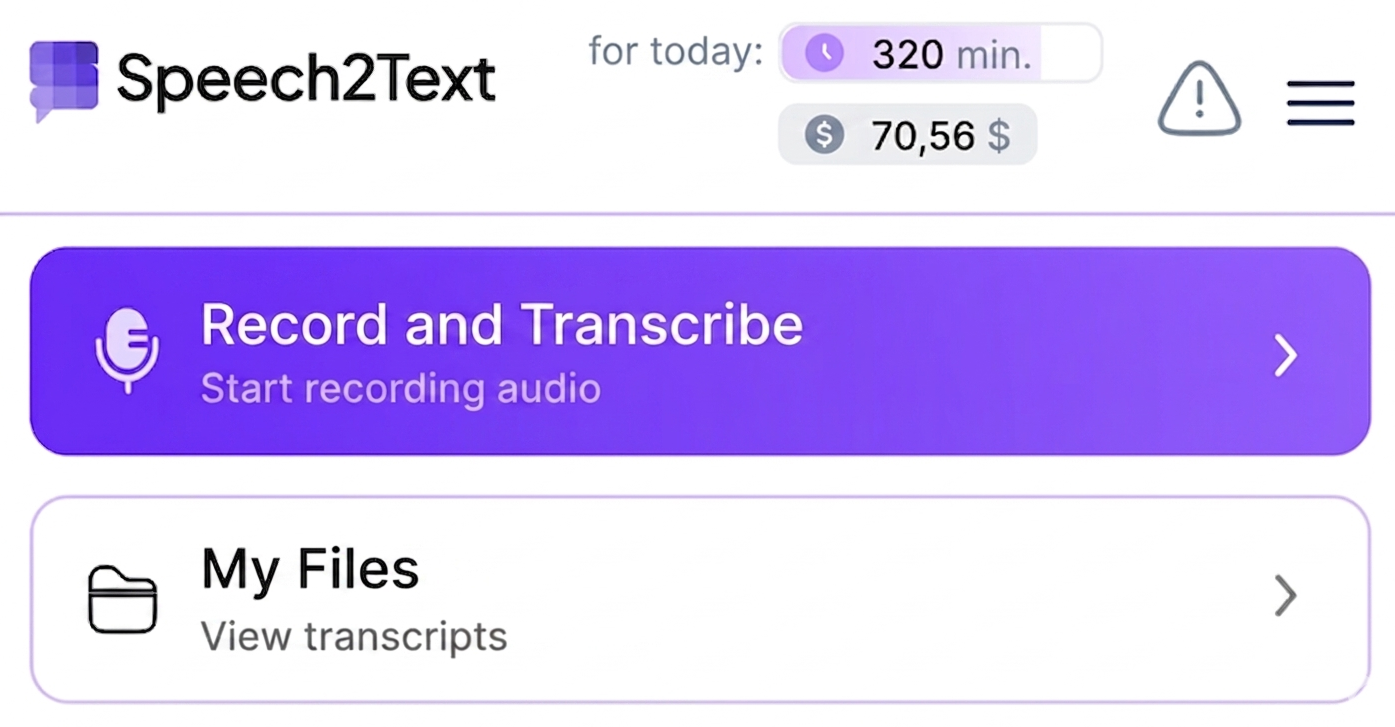
Click on the Speech2Text icon on the toolbar. In the popup window, select the recording source: tab or entire screen; select the audio source: microphone and/or system audio. If needed, configure recording save settings: only to computer, or with sending to Speech2Text service
Start and stop recording
Click the "Start Recording" button in the extension. Conduct your meeting, lecture, webinar or record a video. You can stop recording in the recording window or in the extension by clicking "Stop Recording". Please note that recording stops automatically when closing the browser tab
Get the finished recording and transcription
After recording is complete, the video is automatically downloaded to your computer and to the Speech2Text service for further transcription (this parameter can be disabled if needed). You can view the finished files by going to the Speech2Text website and clicking the "My Files" button in the extension
Key features of the extension
 Record a single browser tab or the entire screen depending on your tasks
 Flexible audio source combination: connect microphone and/or system audio
 Automatic sending and transcription of recordings in your Speech2Text account
 Accurate audio, speech and video to text conversion online in minutes
 Get ready-made brief summaries of your recordings with summaries and AI reports
 Option to save recording only to computer, without uploading to Speech2Text service for transcription
Where to download the extension
The official version of the extension can be installed from the Chrome Web Store